
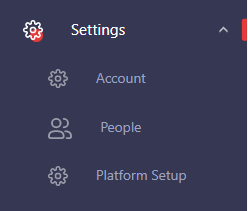
SilkFlo Settings has five areas: Account, People, Platform Setup, API and Customization. Together they control who uses SilkFlo, how ideas are costed and categorised, and how SilkFlo connects to your other systems. Settings is for Admins (any role other than Standard User). The Account Owner sees every area; other Admins see some of them. Open it from Settings in the side menu.
Why Settings matters more than it looks #
Most of what people see in SilkFlo is shaped here. The working hours and days in Account feed SilkFlo’s time and cost calculations. The rates in Cost Setup decide every business case’s ROI. The business units in Platform Setup decide how you can report value by team. If these are wrong or left at defaults, every figure built on them is off too.
A practical split that works for most organisations:
- The Account Owner looks after Account, People and Customization.
- A programme lead with an Admin role owns Platform Setup, because they know how the organisation’s costs, structure and terminology should look.
- Your IT or data team manages API tokens with an Admin.
See Understanding User Roles in SilkFlo.
What’s in Settings #
| Area | What it’s for | Who can open it |
|---|---|---|
| Account | Company details and working time. | Account Owner only |
| People | Invite users, see who’s active or pending, and manage system and collaborator roles. | Admins |
| Platform Setup | Business units, applications, cost setup, document templates, tags and terminology. | Admins |
| API | Create and manage API access tokens. | Admins |
| Customization | Your logo and colour scheme. Pro and Enterprise plans. | Account Owner |
Account #
- Company Details: the Account Owner’s name and email, company name, industry, and your average working hours per day and working days per year. SilkFlo uses the working hours and days in its time and cost calculations, so set them to match your organisation. They feed the productivity calculations, such as hours saved and FTE.
People #
Invite colleagues, check each person’s status (Pending until they sign up, then Active), and see the roles available in your account under Roles. Only the Account Owner can change a user’s system role. See Invite your Team and Understanding User Roles in SilkFlo.
Platform Setup #
Set SilkFlo up to match how your organisation works:
- Business Units: your departments and teams, so ideas can be tracked by where they come from.
- Applications: the systems your processes use. People pick from this list in the Smart Assessment.
- Cost Setup: the costs and rates used in business cases.
- Document: templates, best practice guides and other documents that appear in the Documentation area of every new idea.
- Tags: project tags for grouping and filtering ideas.
- Terminology: your own names for pipeline stages, idea stages and statuses.
See How to set up SilkFlo for your organisation.
API #
Create access tokens so your own systems can connect to SilkFlo, for example to send actual results in automatically. API access is included on every plan. See How to connect to the SilkFlo API.
Customization #
Upload your logo and set six colours for the side menu and buttons, so SilkFlo looks like your own tool. Available on Pro and Enterprise. See Customise SilkFlo with your logo and colours.
FAQs #
Why can’t I see some areas of Settings? #
Settings is for Admins only: Standard Users don’t see it. Admins (any role other than Standard User) see People and Platform Setup. The Account Owner sees everything. If you need access to an area, ask your Account Owner. Customization also needs a Pro or Enterprise plan.
Where do I change my company’s working hours in SilkFlo? #
Go to Settings > Account > Company Details and update the average working hours per day and working days per year. SilkFlo uses these in its time and cost calculations.
Where do I add or remove users in SilkFlo? #
In Settings > People. Admins can invite new users there. See Invite your Team.


